Create your Salesforce AgentForce Developer Org
10 Min Read

Step-by-Step Guide to Setting Up Your Agentforce Org in Salesforce

Setting up an Agentforce org isn’t just about turning on AI in Salesforce. It requires configurations, like how much autonomy should be given, what data the agents can trust, and what actions they are allowed to execute without human intervention. And if all these configurations are not properly made or there is even a slight mistake, then you will end up with an impressive demo that fails in real-life workflows.


It is important to get the Agentforce org setup in Salesforce right, so Agentforce becomes a reliable execution layer inside your org. So, you need to have clarity on the Agentforce setup configurations, technical readiness, and understanding how the Agentforce interacts with Einstein, Data 360, and org permissions is essential.


This Salesforce Agentforce setup guide covers all that you might want to know: how to set up an Agentforce org in Salesforce properly, the prerequisites, org configurations, and the necessary steps that the teams can rely on.



What is Agentforce and Why You Need It?

Salesforce Agentforce is a part of the Salesforce platform, and it is a complete AI system that integrates data, AI, automation, and humans to deploy trusted AI agents to simplify business processes in Salesforce. Agentforce gives users the necessary tools, services, and pre-built agents that can leverage the power of an LLM and the connected data to identify what work needs to be done and complete it when prompted.


Step-by-Step Guide to Creating a Free Agentforce Org


Step 1. Sign up for Developer Salesforce Org

The Salesforce Agentforce is now a General Available product. That means in every Developer org, this feature is available. That implementation is on top of the Einstein Generative AI. Therefore, it is important to enable Einstein Generative AI for Agentforce.


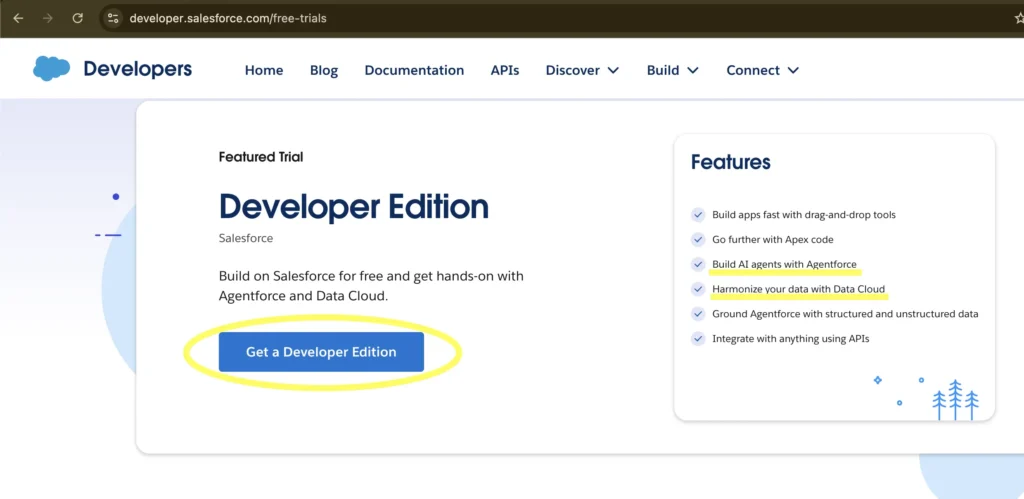
  • Since Salesforce Agentforce is now a GA product, all you need is to create a free developer edition org. You can do that by going to Salesforce free Trails page.
  • Now Select Developer Edition, You can do that by clicking on "Get a Developer Edition" button as given in this image. If you dont see that button, search for Developer Edition, under "Products & Trials" Tab
  • Agentforce Enabled Developer Org
    Sign up to Developer Edition Org

Step 2. Enable Einstein Generative AI

  • Complete the sign up process and login to your developer org
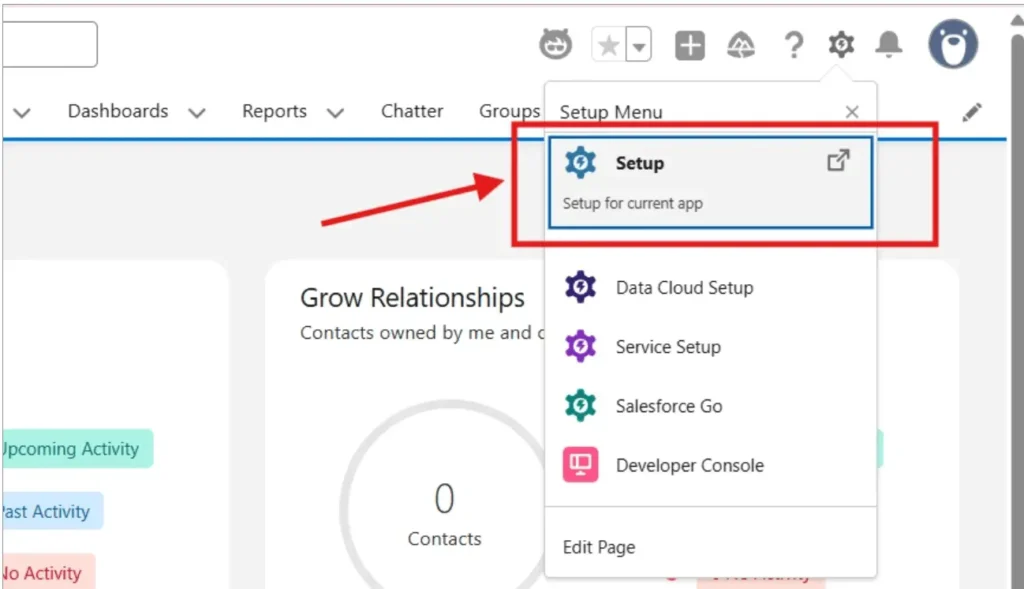
  • Move to the Setup Menu
  • Enable Agentforce using Setup
    Enable Agentforce using Setup
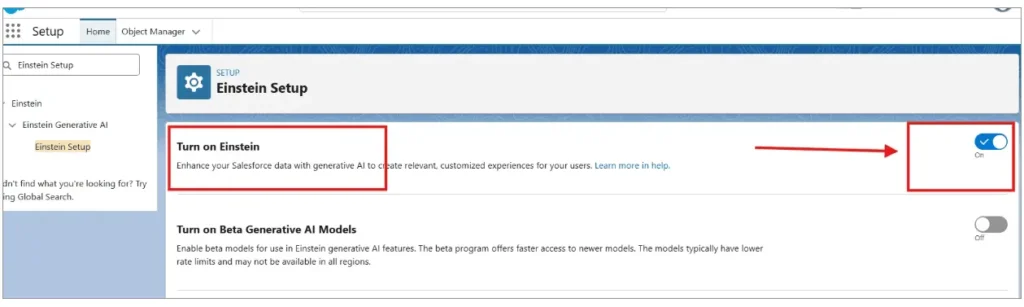
  • To enable the Einstein Generative AI, in the Quick Find, search for Generative AI and select Einstein Setup.
  • Click on the ‘Einstein Setup’ and toggle the “Turn on Einstein” to ‘On’.
  • Enable Agentforce using Setup
    “Turn on Einstein

Step 3. Enable Data Cloud (Optional Step)

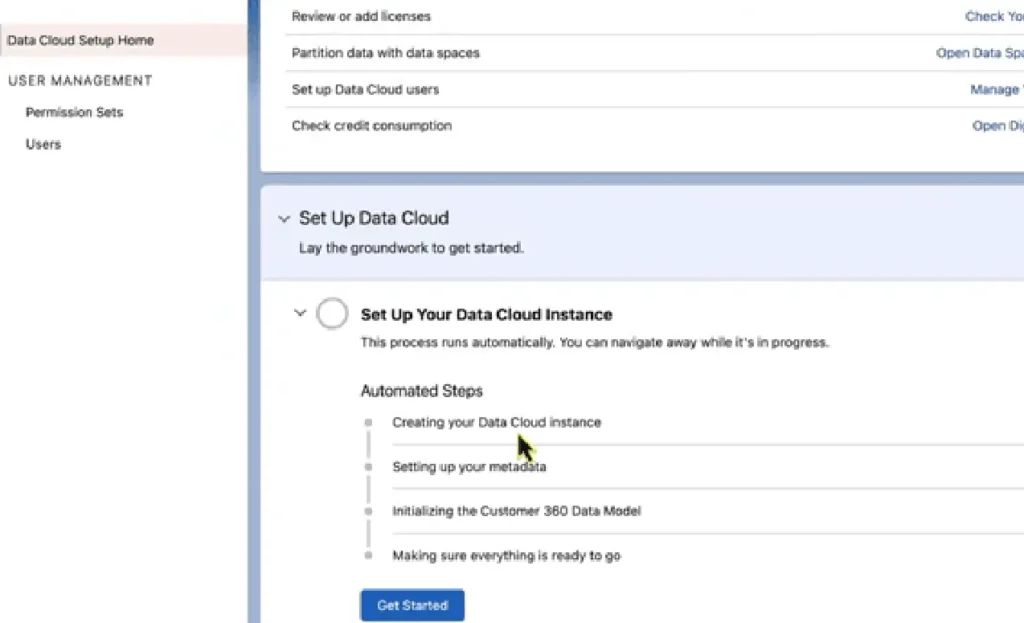
  • This is an optional step. In most of the use cases of Agentforce you need Data Cloud as well. Search for Data Cloud in the Quick Find, click on Data Cloud Setup Home, scroll down to ‘Setup your Data Cloud Instance’, and click on Get Started.
  • Enable Data Cloud
    Enable Data Cloud
  • This is an automated process, and it will take some time, even an hour, to complete setting up the data cloud instance.
  • Refresh Data Cloud enable page after some time. Once enabled you will see "Your Home Org Details" Section. That confirms that data cloud is enabled.

Step 4. Create your First Agent

  • By enabling Einstein Generative AI, and Data Cloud, your Agentforce is ready to use. Now you can create your first agent.
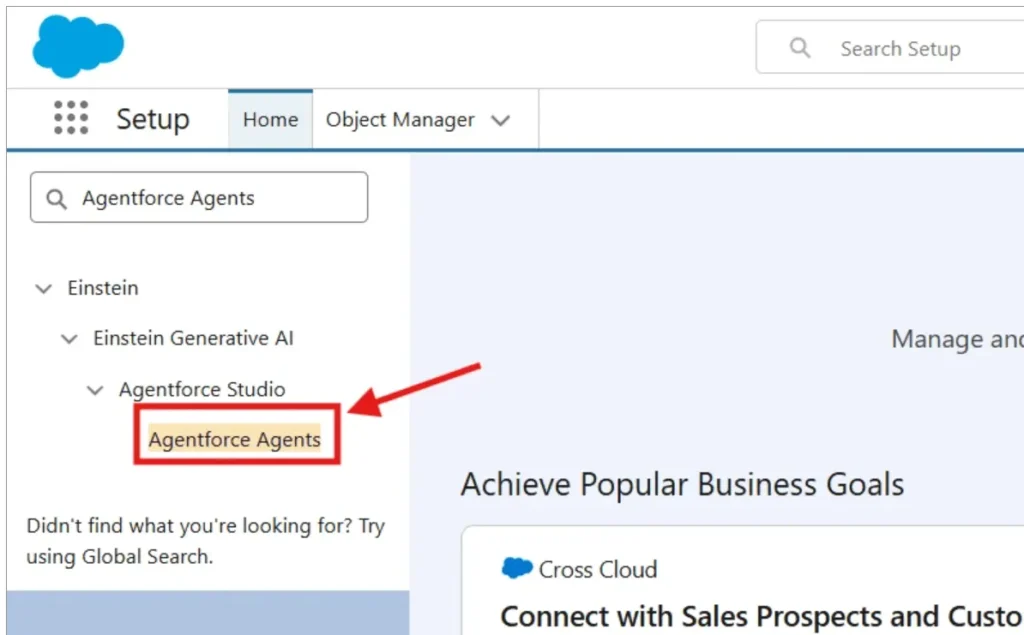
  • Visit the ‘Setup’ again and type ‘Agentforce Agents’ in the Quick Find box.
  • Configure Agentforce Agents
    Configure Agentforce Agents
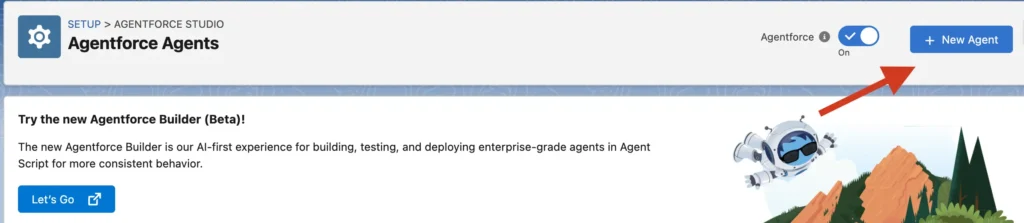
  • Open the Agentforce Agents and turn the toggle to ‘On’.
  • Click on "New Agent" Button to create your first agent.
  • Create your first agent
    Create your First agent
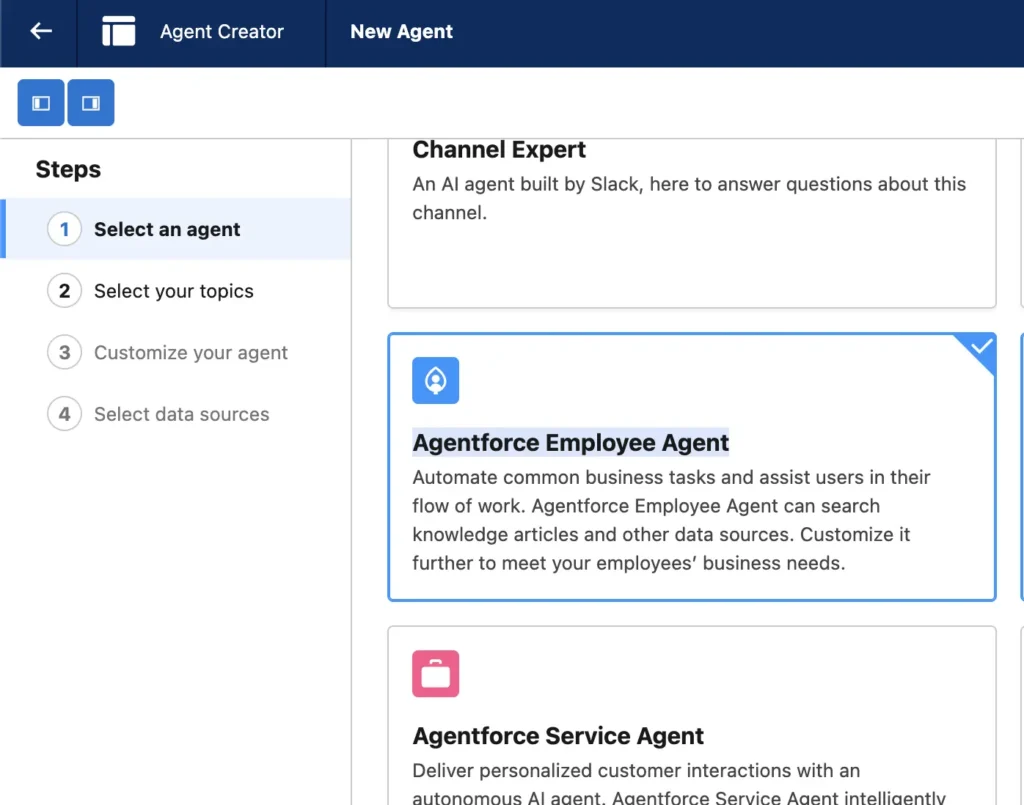
  • It will open a new page where you can select the type of agent you want to create. Here Select Agentforce Employee Agent. Agentforce Employee Agent are used to support internal employees. They can only be used inside Salesforce and can not be deployed to any other channels like Salesforce Experience Cloud, Customer's own Websites, Mobile Apps, WhatsApp etc. This agent can assist employees with internal queries and tasks and can trained in any knowledge articles and documents available within the Salesforce org.
  • Create your first Employee Agent
    Create Employee Agent

Step 5. Assign topics to your agent

  • Now agent needs a topic to work on. Topics are the areas of expertise that your agent will focus on. You can assign multiple topics to an agent. Based on Agent Type, there will be some topics by default available. For example, for Employee Agents, General FAQ is pre selected. This topic can handles employee inquiries by reading knowledge articles. Questions like -"What is your return policy?” “How do I fix an issue?” or “What features does a product have?” can we taken care by this agent. Select this topic as it is for now. and click on Next.
  • Select Topics for your Agent
    Select Topics for your Agent

Step 6. Customize your agent

  • In this tab you can customize your agent by giving it a name, description, define a role for your agent, Company information.In the name add -"CaseCoach ",
    We want our agent to help employees with their queries related to case. So in Description put this -"You help internal employee by answering Case related queries. For Example, How many Cases are there in the org. Give me list of top priority cases, etc.."
    In the Role add this detail - "You are an Case Coach for Employees, Help them on any case related queries."
    At last we need to define what company does. In the Company field add "The company name is SFDC Services. The company provide the salesforce support on doing customizations and admin activities. There are many internal employee that are part of SFDC Services." At the last Click on Next.

Step 7. Select data sources (Optional)

  • The advantage of Agentforce is that it can read data from multiple data sources. In this step you can select the data sources from where the agent can read the data directly from a Data Library. This step is optional. You can skip this step for now and click on Create.

Step 8. Add Topic and Asset library

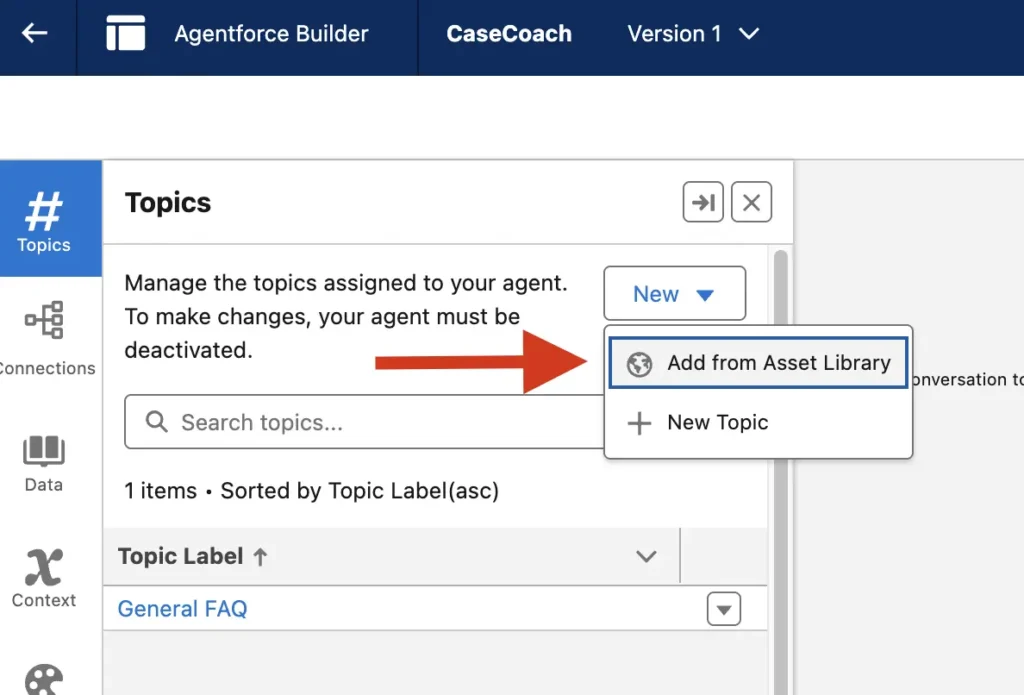
  • Now since we want our agent to help employees on Case related queries, so we need to add Case Management topic to our agent. For that click on the Add Topic and Asset library button and select Case Management tab. Select It and Activate your Agent. You can ignore the worning message for now and click on Activate.
  • Add Topic and Asset library
    Add Topic and Asset library

Step 9. Give Access to Your User

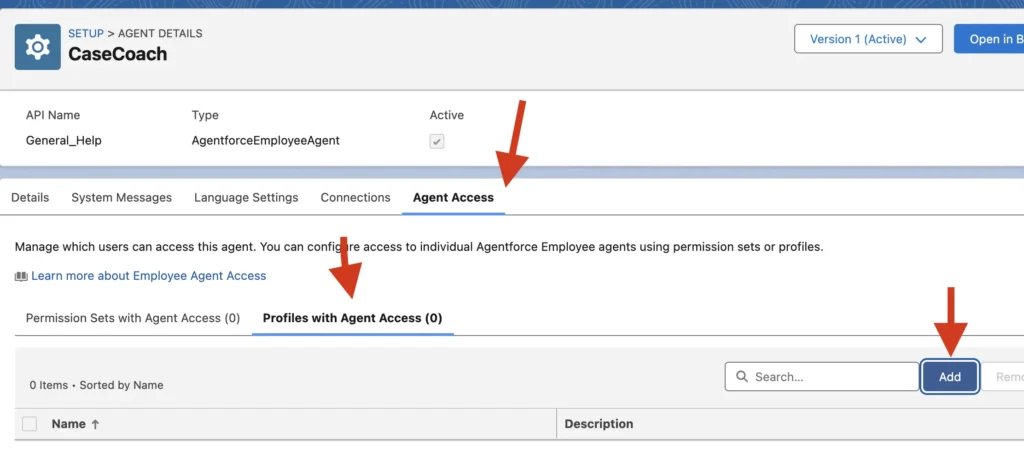
  • To give your user access for the Employee Agent, You need to go to agent builder page and add your profile or permision set and grant access to that agent. The Employeee Agent works on current users context, so the user must have access to the records that the agent is trying to access. For example, if the agent is trying to access Case records, then the user must have access to Case object and records.
  • Give Access to Your User
    Give Access to Your User

Step 10. Test Your Agent

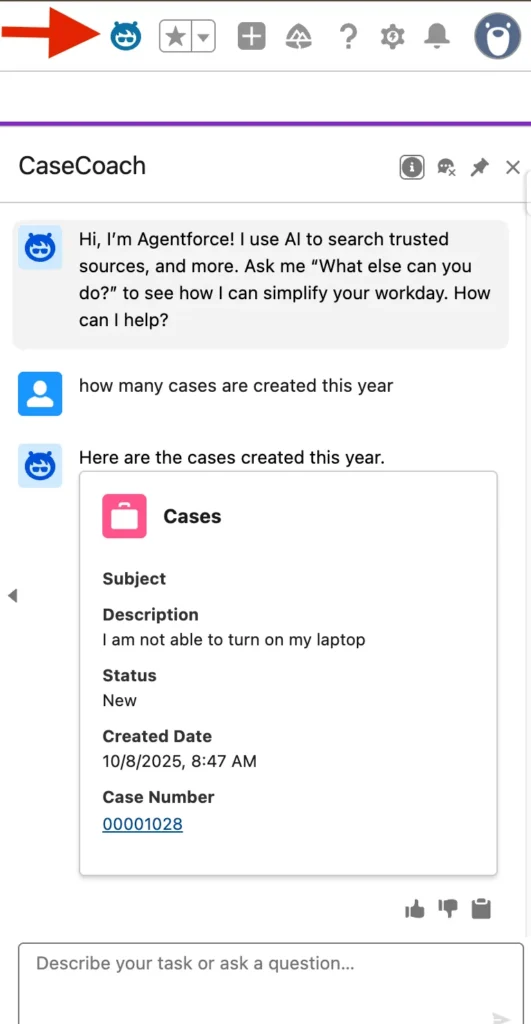
  • We are all set now, let go to Service Cloud App, and now you will in the top, you will see Agent Option, Click on it and ask any questions relate to case, for example -"How many cases are created this month?" or "List me top 5 high priority cases". You will see that agent will respond to your queries real time.
  • Test Your Agent

Conclusion

For users who believe that Agentforce is a plug-and-play solution and start using it without a solid groundwork of configurations, permissions, and boundaries are most likely to end up with inconsistent outcomes, inactive features, and loss of trust in AI outcomes.


Therefore, ensuring that the Agentforce org setup is performed by taking care of all the Salesforce foundations: prerequisites, enabling the necessary features, like Einstein Gen AI and Data Cloud, and correct configurations of the topic and instructions, while enabling Agentforce in the org, is necessary. This promises that you are setting the stage for predictable, trustworthy, and dependable outcomes from AI agents from day one.


FAQs

  1. What is Agentforce for Developers?
    The Agentforce for developers is a powerful AI-assisted tool that helps them in designing, testing, and building applications and agents using Salesforce-specific codes such as Apex and LWC.
  2. How to Сreate a Service Agent in Salesforce?
    To create and configure an Agentforce service agent in Salesforce, developers must enable permissions and perform configurations for the desired Service Cloud usage.
  3. How to Create and Configure a Service Agent in Salesforce Agentforce?
    To create and configure a service agent in Salesforce Agentforce, activate the required permissions, features, enable Einstein Generative AI and enable Agentforce in the org. Then configure the prompts and boundaries to ensure that the agent aligns with the service workflows.

back top