How to use Data Cloud Ingestion APIs using Postman
- February 9, 2026
- Posted by: SFDCGYM
- Category: Salesforce Data Cloud ,
How to Use Salesforce Data Cloud APIs with Postman
The world of data is complex, and managing it efficiently is key to success. For Data Cloud Admins and Salesforce Developers, Ingestion APIs are the lifeline for getting data into the Salesforce Data Cloud. But how do you set up these APIs? What features do they offer, and how do you use them efficiently? This guide is here to break it all down for you — step by step.
Whether you’re dealing with real-time updates via the Streaming Ingestion API or handling large datasets with the Bulk API, knowing how to implement and test these tools can significantly streamline your data-management tasks. Read on to explore how to make the most of these powerful Salesforce APIs.
Streaming Ingestion API
The Streaming API is designed for real-time data ingestion. Whether you’re capturing live transactions, updating customer preferences, or pulling in streaming IoT data, the Streaming API ensures that data flows seamlessly into your Salesforce environment.
Key Features of the Streaming API:
- Handles real-time events and actions.
- Best for use cases requiring immediate updates to your data cloud.
- Processes smaller volumes of data in near real-time.
Bulk API
The Bulk API is perfect for scenarios where you need to process large volumes of data at once. Whether you’re importing historical transaction logs, loading batch data, or migrating records, the Bulk API makes heavy lifting simple.
Key Features of the Bulk API:
- Ideal for bulk data insertion or migration.
- Processes large datasets more efficiently.
- Optimized for asynchronous operations rather than real-time updates.
Which API Should You Use?
Choose the Streaming API if your use case requires instant validation and processing of new data. Opt for the Bulk API if your focus is on handling larger data workloads in batches.
Step-by-Step Guide to Setting up the Ingestion API
Here’s how to successfully set up and deploy Salesforce Data Cloud’s APIs using tools like Data Cloud and Postman.
Step 1: Prerequisites
Before you begin, make sure you have:
- Access to a Salesforce Data Cloud Org.
- A free or premium Postman account.
- Basic knowledge of YAML format for schema creation.
Step 2: Actions Needed in Data Cloud
Set up the Ingestion API
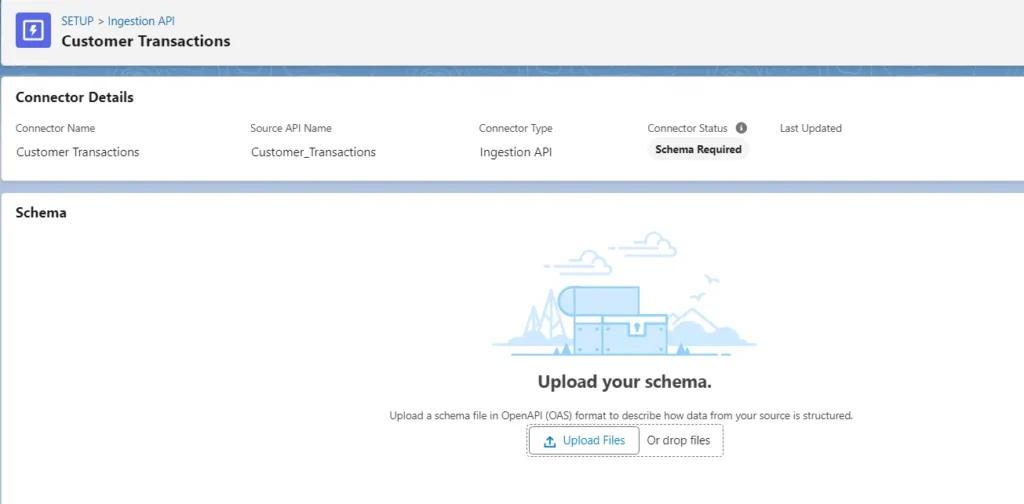
- Go to Data Cloud Setup, search for “Ingestion API”, and click the New button to create a new connector.
- Name the connector — for example, “Customer Transactions” — and click Next.
Create and upload a YAML file:
Open any text editor and create a .yaml file for your data schema. Here’s a basic example:
openapi: "3.0.0"
components:
schemas:
Transactions:
type: object
properties:
CustomerID:
type: string
example: "12345"
TransactionAmount:
type: number
format: float
example: 100.50
PurchaseDate:
type: string
format: datetime
example: "2023-10-25"
Location:
type: string
example: "New York, USA"
- Upload this
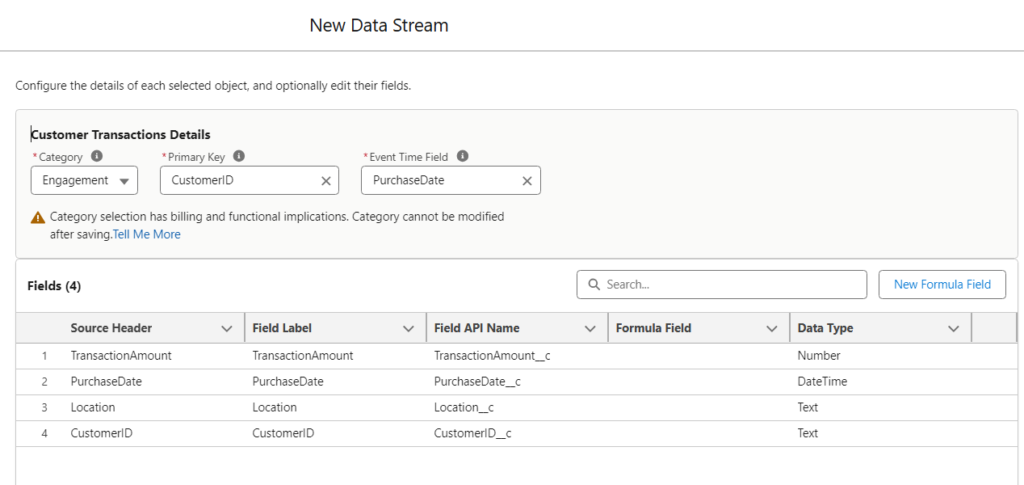
.yamlfile to the Customer Transactions page in Salesforce Data Cloud. - Go to the Data Streams tab in Data Cloud and create a new data stream
- Under Connected Sources, select Ingestion API and click Next
- Choose Customer Transactions as the source and select Transactions as the object
- Validate fields: Under Category, select Engagement
- Assign Primary Key as `CustomerID` and Event Time Field as `PurchaseDate`.
Important Note: If `PurchaseDate` is not defined as a `datetime` in your YAML file, it will not appear in the Event Time Field dropdown.
- Deploy your API by clicking Deploy
Create a Connected App
To enable authentication, set up a Connected App:
- Navigate to App Manager in Salesforce Setup
- Click New Connected App and provide , A unique app name and Full access permissions under OAuth scopes
- Save and enable your connected app, then note the Consumer Key and Consumer Secret.
Step 3: Setting Up Streaming API Using Postman
- Log in or sign up on Postman
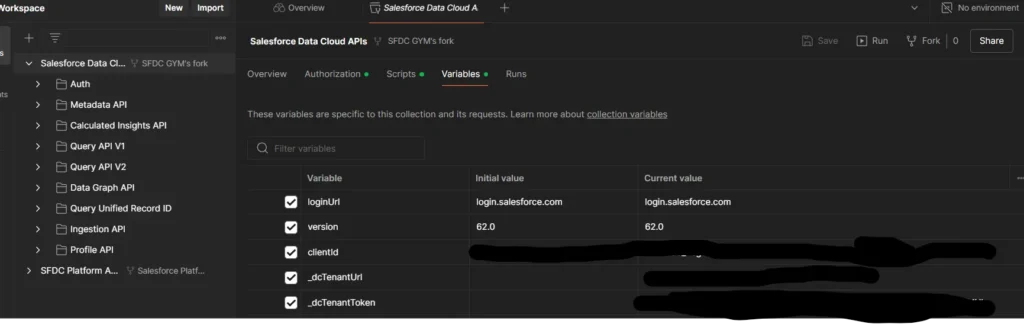
- Use the search bar to locate Salesforce Data Cloud APIs, and fork the appropriate folder to edit.
- Send a test request to ensure connectivity.
Assign Variables and Authentication
- Under the Salesforce Data Cloud API folder, go to Variables. Assign values for essential fields like `client_id`, `client_secret`, `organization_id`, etc.
- Navigate to the Authorization tab and click “Get New Access Token”.
- Log in to your Salesforce Data Cloud Org. Postman will capture the access token.
Validate Your API Connection
- Under the Auth folder, send a test request to confirm connectivity. Copy the resulting post-response script.
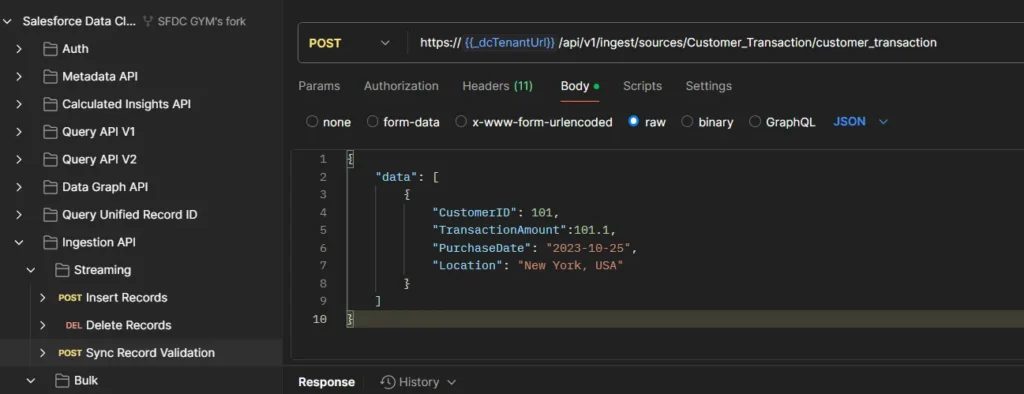
- Navigate to the Streaming API folder in Postman. Select the “Sync Record Validation” request.
- Paste the post-response script into the Post-Response Script tab.
- Replace the default JSON body with your custom payload:
{
"data": [
{
"CustomerID": "101",
"TransactionAmount": 101.1,
"PurchaseDate": "2023-10-25",
"Location": "New York, USA"
}
]
}
- Click Send. If configured correctly, you’ll receive confirmation
- Follow similar steps for Insert Records.
View Records in Data Cloud
- Open the Data Explorer tab in Data Cloud.
- Select the relevant object (DLO), and your ingested data will appear after some time.
Step 4: Setting Up Bulk API
- Create a Job in the Bulk API folder and upload large datasets.
- Test and validate the insertion using similar request-response workflows.
Why Use Salesforce Data Cloud APIs?
Using Salesforce Data Cloud APIs provides organizations with robust tools to handle diverse data scenarios, offering:
- Seamless integration between real-time and batch data processing.
- Enhanced insights from accurate and timely data ingestion.
- Flexibility for developers to test and refine workflows.
Elevate Your Data Management Today
Getting started with Data Cloud APIs doesn’t just help your organization manage data — it enables efficiency, scalability, and innovation. Whether you’re syncing real-time customer interactions with the Streaming API or loading historical data with the Bulk API, Salesforce Data Cloud makes it all seamless.

Author: SFDCGYM
Leave a Reply Cancel reply
Summary Of this Article
🌐 What are Data Cloud’s Ingestion APIs?
Streaming API
🌟 Ideal for real-time updates.
🌟 Processes smaller data volumes instantly.
🌟 Perfect for live customer interactions and IoT data.
Bulk API
🌟 Designed for handling large data volumes.
🌟 Used for bulk data uploads and migrations.
🌟 Works asynchronously for efficiency.
⚙️ Which API Should You Choose?
✅ Go with the Streaming API if you need real-time updates.
✅ Choose the Bulk API for batch processing large datasets
🛠️ How to Set Up the Integration
Step 1️⃣ Prerequisites
✔️ Salesforce Data Cloud Org access.
✔️ A Postman account.
✔️ YAML know-how for creating schemas.
Step 2️⃣ Setting Up
✔️ Create connectors in Data Cloud Setup.
✔️ Use YAML files to define your data structure.
✔️ Deploy APIs and configure keys like primary and event time fields.
Step 3️⃣ Using Postman
✔️ Fork the Salesforce APIs in Postman.
✔️ Set variables for client authentication.
✔️ DTest your APIs using JSON payloads.
Step 4️⃣ Bulk API Setup
✔️ Use jobs in Postman to upload large datasets.
✔️ Validate your data ingestion with test requests
🌟 Why Use These APIs?
Seamless Data Handling
Enhanced Insights
Developer-Friendly
All Blogs
Segmentation and Its Types in Data Cloud
Streaming and Real-Time Insights in Data Cloud
Before you begin, make sure you have:
- Access to a Salesforce Data Cloud Org.
- A free or premium Postman account.
- Basic knowledge of YAML format for schema creation.